Review Copilot priorities and support actions
Copilot, Interventions, Specialists, and Risk Alerts provide different views of support needs. Use them within your teacher-owned class scope and confirm the learning evidence before acting.
Review the priority queue
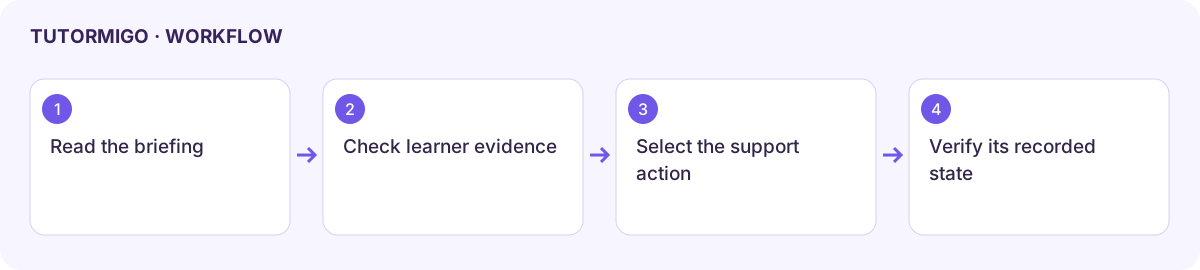
Section titled “Review the priority queue”- Open Teacher Copilot and read the current briefing and Priority Students.
- Compare each recommendation with the learner’s confidence, prediction rationale, and recent work.
- Open Interventions and choose the supported disposition: Monitor, Assign Action, or Escalate.
- Confirm the action matches the actual support plan. Escalation can create a parent-contact requirement rather than simply hide the recommendation.
- Reopen the queue and check the updated state.
Assign a specialist
Section titled “Assign a specialist”In Specialist Agents, inspect the specialist policy and Allowed tools. Enter the intended Student ID for assignment and choose Assign To Student for the relevant specialist. The reviewed form uses a predefined purpose; it is not a free-form support-plan editor. Verify the selected learner carefully before assignment.
Review risk alerts
Section titled “Review risk alerts”Open Risk Alerts, read the active items, and use the available resolve action only after reviewing and planning support. The reviewed resolve control records a predefined review note. The Conference Brief Generator uses a Student ID; inspect the returned brief for accuracy before a family discussion.
An empty queue can mean no recommendations were returned. It does not prove every learner is doing well. Predictions are advisory and human review remains necessary for consequential actions. Preserve the original evidence and your reasoning rather than treating a label as a diagnosis.
Workflow at a glance
Section titled “Workflow at a glance”