Browse games and review a completed session
Games provide subject practice with their own sessions, results, history, and leaderboards. They are separate from the flashcard-based Memory Games retention dashboard.
Choose and play
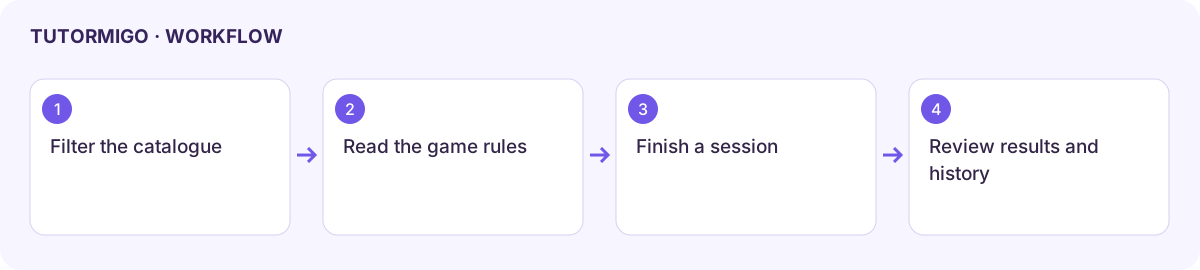
Section titled “Choose and play”- Open Games, then the available game browser.
- Filter by Subject and age band: K–2, 3–5, 6–8, or 9–12.
- Read a game’s instructions and choose its launch action. Check the subject and level before starting.
- Follow the game’s controls and answer the actual question rather than guessing for speed.
- Finish the session and inspect its results. Use errors or missed items to choose your next practice topic.
History and leaderboards
Section titled “History and leaderboards”Open History to find earlier sessions and reopen a result where supported. Compare the same game or skill when judging improvement; different templates can use different scoring rules.
Use the available Leaderboard to inspect the displayed scope and period. Class and global views are not interchangeable. Rankings and XP encourage participation but do not replace a mastery check.
If the catalogue is empty, clear the filters and check feature access. If a game stops responding, retain the session identifier or title and error before refreshing. A failed or unfinished session may not produce a final score.
Teachers manage game resources and analytics through activity management.
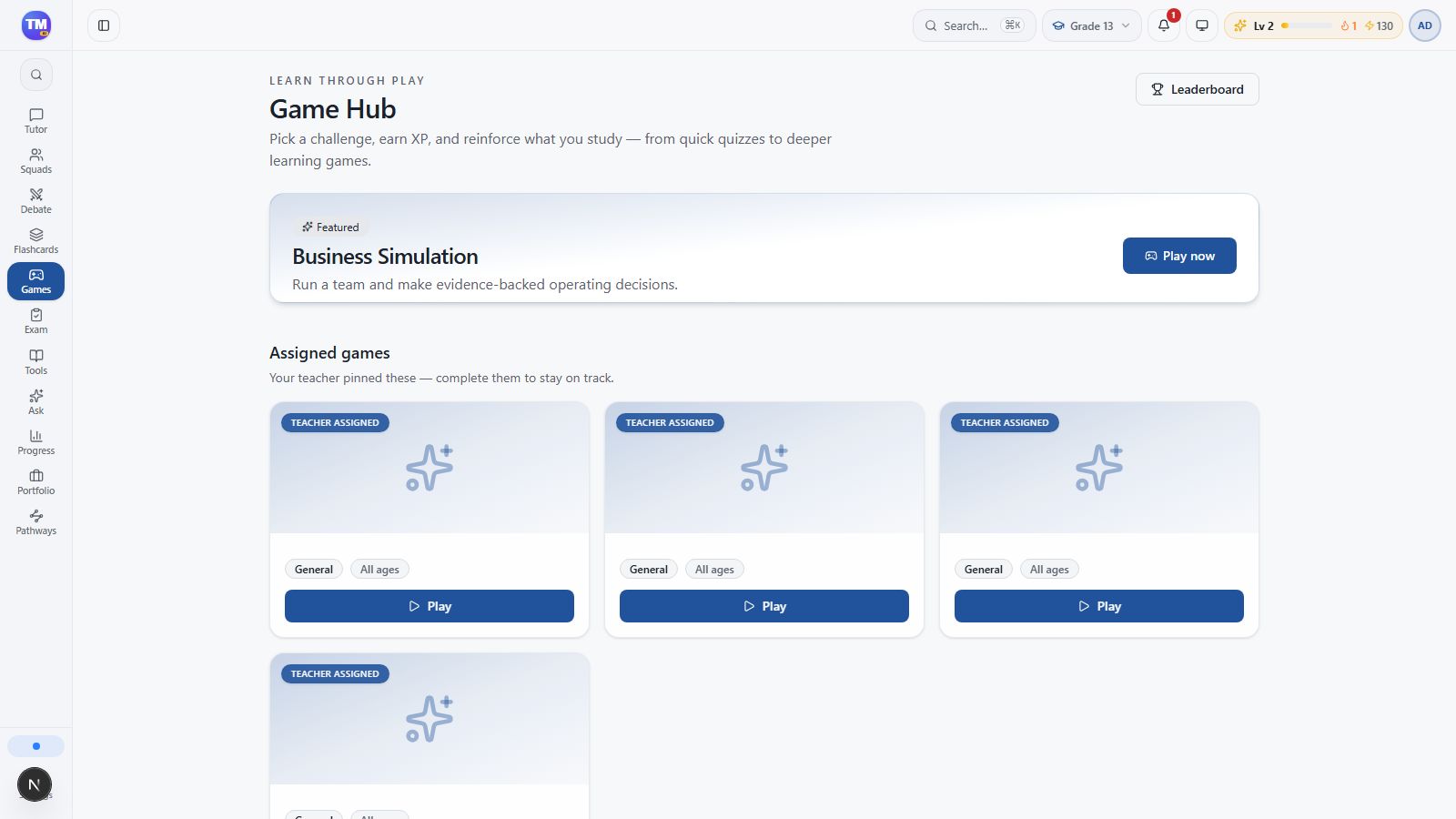
Game Hub with featured and assigned game entry points.
Workflow at a glance
Section titled “Workflow at a glance”