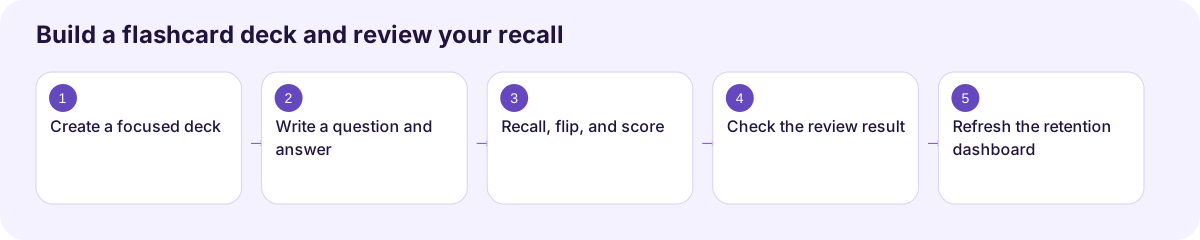
Build a flashcard deck and review your recall
Use Flashcards for active recall: attempt an answer, reveal it, and rate how well you remembered it. Open Flashcards in student navigation.
Watch the walkthrough
Section titled “Watch the walkthrough”Read the walkthrough transcript
1. Create a focused deck
Let's build a small deck we can actually review. Open Flashcards and choose Create Deck. Give it a clear title, then add the subject and topic to keep your study material organized.
2. Write a question and answer
Choose Add card. Put one question on the front and a short, accurate answer on the back. We're using a photosynthesis question. Save the card, then choose Review deck to begin.
3. Recall, flip, and score
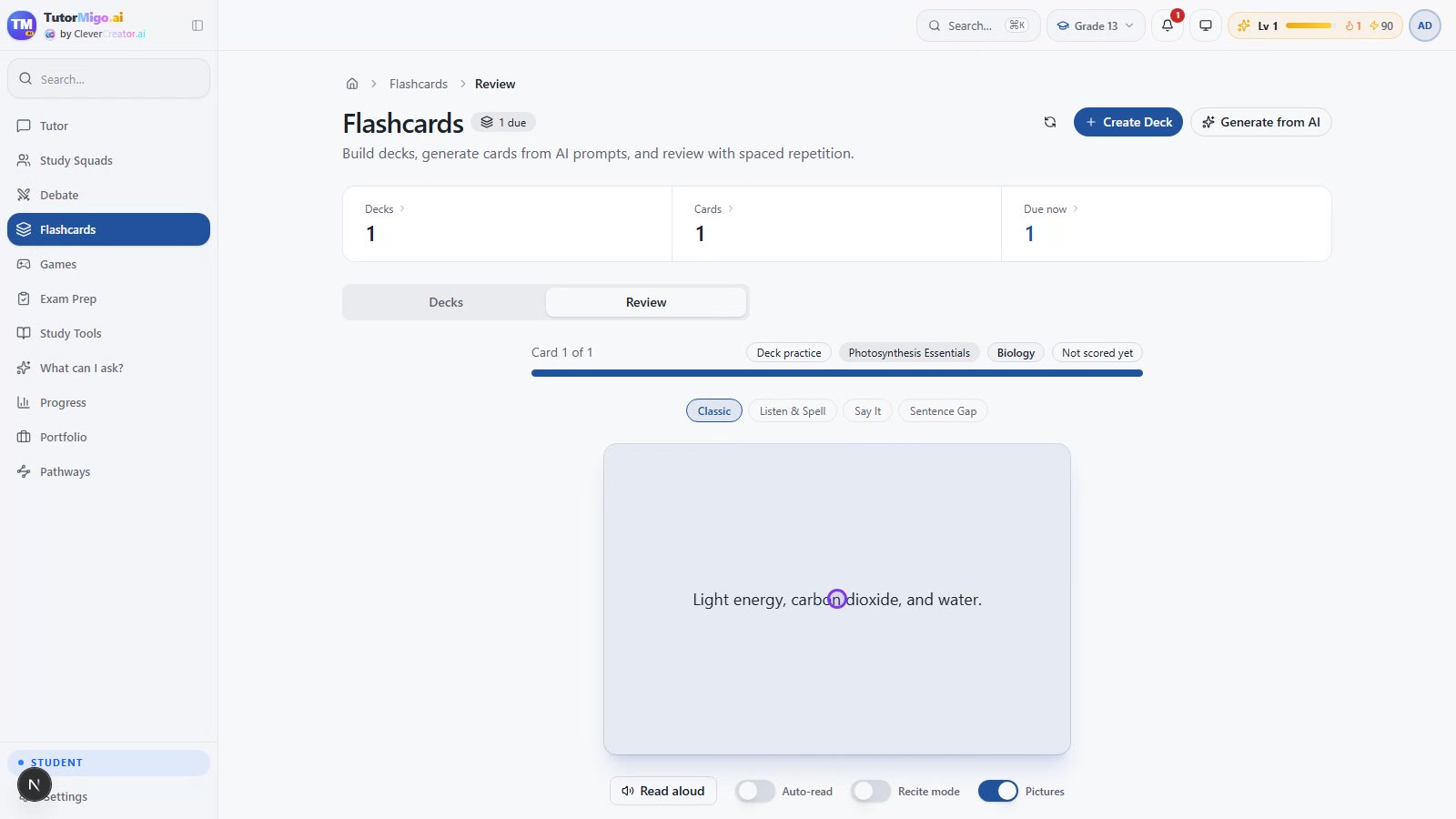
Try to answer before you reveal the back. Flip the card, compare your answer, then rate your recall honestly. We choose Good here. Your rating helps schedule the next review, so use Again when you couldn't remember.
4. Check the review result
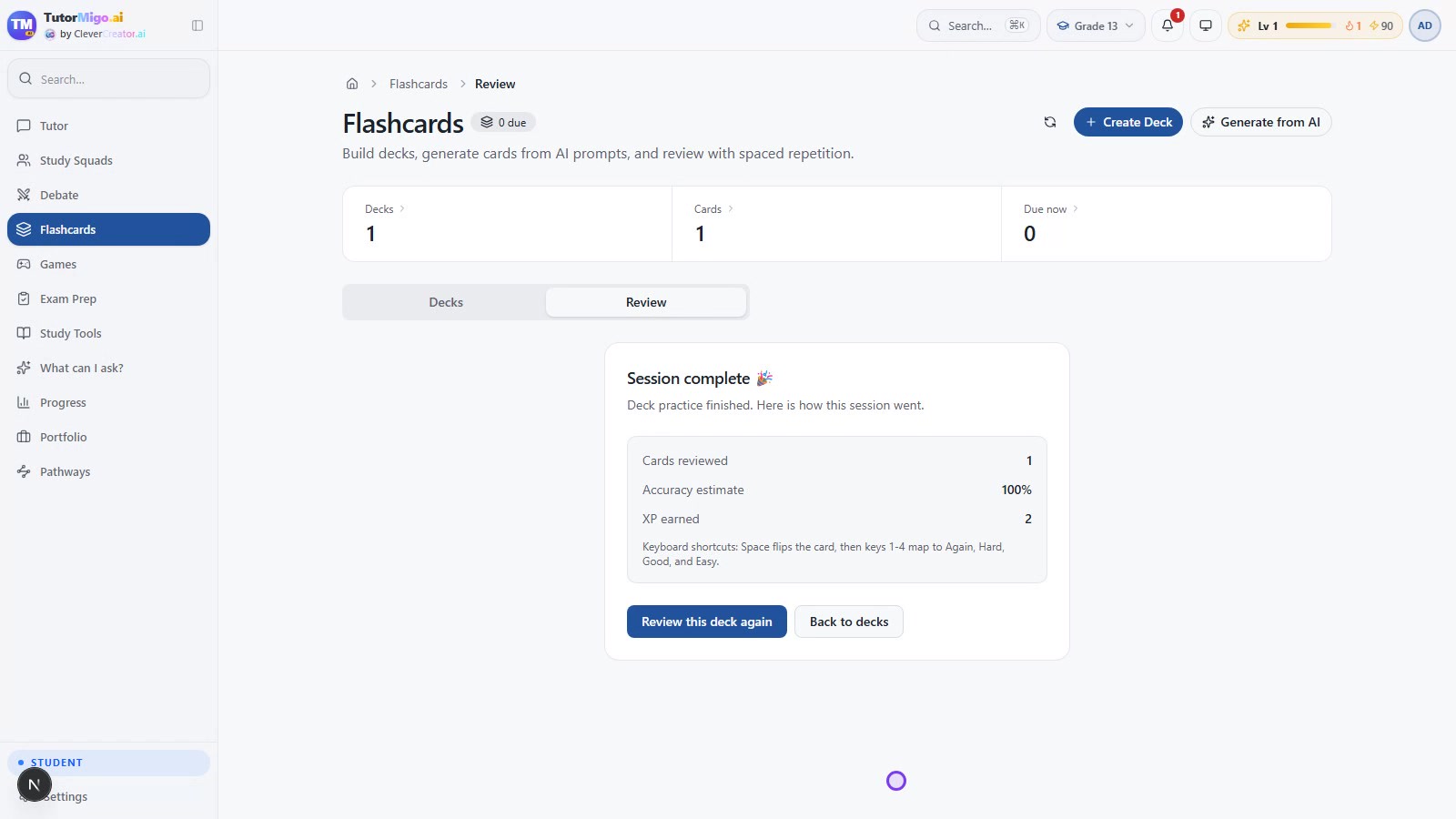
The session is complete. Check how many cards you reviewed and the session summary. This is a one-card example; a larger deck gives you a more useful practice session.
5. Refresh the retention dashboard
Now open Memory Games and choose Recompute. The retention dashboard uses your flashcard review history. Treat the forecast as a guide for what to revisit, and come back when your cards are due.
Download video · Captions · Transcript
Create a small deck
Section titled “Create a small deck”- Choose Create Deck.
- Enter a clear Title and optional Subject and Topic, then choose Create deck.
- Choose Add card. Put a single question on Front and its answer on Back.
- Choose Add card to save it. Check that the card count increases.
- Choose Review deck to practice the deck, or Review due for scheduled cards.
Example front: What do plants use to make glucose during photosynthesis?
Example back: Light energy, carbon dioxide, and water.
Review honestly
Section titled “Review honestly”Try to answer before choosing Show answer or pressing Space. Compare your answer, then choose Again, Hard, Good, or Easy. After flipping, keys 1–4 select those ratings. A missed answer belongs in Again; do not choose Easy just to clear the queue.
At the end, check Cards reviewed, the accuracy estimate, and XP earned. The video uses one card to demonstrate the process; that summary is an example, not a measure of mastery over the whole subject.
Use the review history
Section titled “Use the review history”Open Study Tools → Memory Games and choose Recompute after studying. Its retention dashboard uses flashcard intervals and recent activity. Return for your due reviews instead of treating a single successful recall as permanent learning.
The workspace also offers AI card generation and alternative practice styles. This walkthrough verifies manual card creation and Classic review; generation and other styles require their own outcome checks.
Next: Read your retention dashboard or review learning progress.
Workflow at a glance
Section titled “Workflow at a glance”