Open a teacher launch or collaboration room
Classroom Launchpad shows the activities and rooms assigned to your classes. It provides student actions while keeping teacher management controls in the teacher workspace.
Find your current class activity
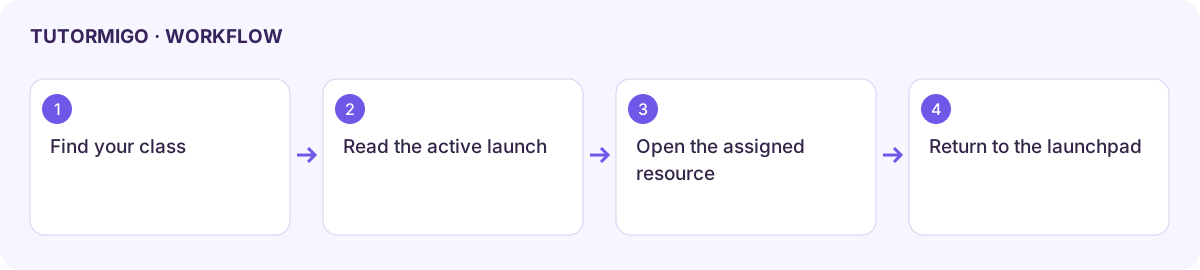
Section titled “Find your current class activity”- Open Classroom through the available workspace or class link.
- Check Active Classroom Snapshot for your classes, active launches, and rooms.
- Find the relevant class card and read its active launches.
- Choose Open on the assigned activity and check its title and instructions before starting.
- Complete the activity in its own workspace, then return to Classroom for the next task.
Join a room
Section titled “Join a room”Read the class’s Collaboration rooms list. Open the room assigned to you and follow its whiteboard or small-group instructions. Use the room’s participant and follow controls where available; the teacher determines the activity and membership.
An empty launch list means no teacher launch is active for that class at this time. It does not prove your class enrollment disappeared. If no class is shown, ask the teacher to check the roster and account. If an activity opens but its resource is unavailable, report its title and the displayed error.
Parents can inspect the child-scoped classroom view in their own workspace. Teachers create launches and rooms through Classroom Control.
Workflow at a glance
Section titled “Workflow at a glance”