For teachers2 min read
Manage games, challenges, audio, and roleplay
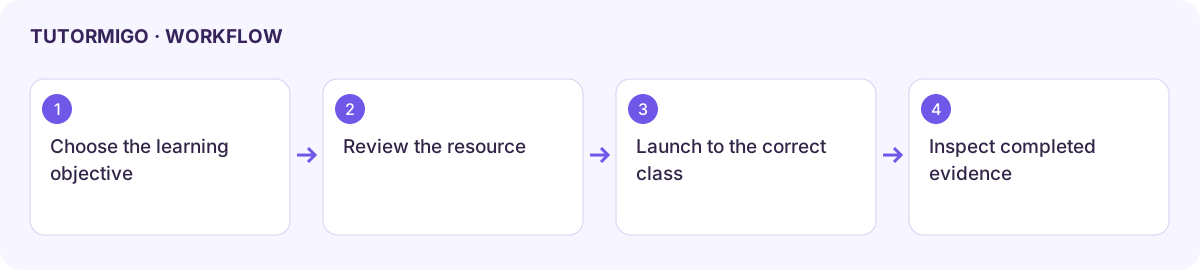
Teacher activity tools provide resources and analytics distinct from a student’s practice screens. Start with a class and a learning objective, then choose the resource that fits it.
| Tool | Practical workflow |
|---|---|
| Games / Games analytics | Inspect the available dashboard, templates, assignments, and session measures. Compare results for the same activity and class. |
| Gamification | Select the intended class, inspect the available XP, leaderboard, or engagement settings, review a change, and confirm it persisted. |
| Challenges | The reviewed page is a placeholder saying “Create and manage class challenges here”; it does not contain a working challenge editor. |
| Code challenges | Use the available challenge-management controls, review requirements and test expectations, then launch the supported resource for the class. |
| Audio lessons | Use the teacher manager to inspect or create available lesson resources; review the generated audio and material before assignment. |
| Roleplays | Use the teacher manager to inspect the scenario and evaluation expectations before asking learners to practise. |
Assign and verify
Section titled “Assign and verify”- Check the chosen resource’s title, subject, level, and instructions.
- Use a supported assignment control or Classroom Control launch.
- Confirm the destination class and intended learners before applying it.
- Check the launch appears in the teacher list and the student’s Classroom Launchpad.
- Review completed activity evidence; an assignment being visible does not mean it was completed.
If a catalogue is empty, check resource creation, class selection, and feature access. If an action is missing or disabled, use the tools actually enabled rather than assuming every manager supports creation and grading.
Workflow at a glance
Section titled “Workflow at a glance”