Show your thinking on the whiteboard
Use the whiteboard to sketch a diagram or show your working. Open Tools → Whiteboard. A board belongs to a tutor session.
Choose the session first
Section titled “Choose the session first”Select a recent tutor session from the list. If the page says No tutor sessions found, start a session in Tutor, then return to Whiteboard using the same account.
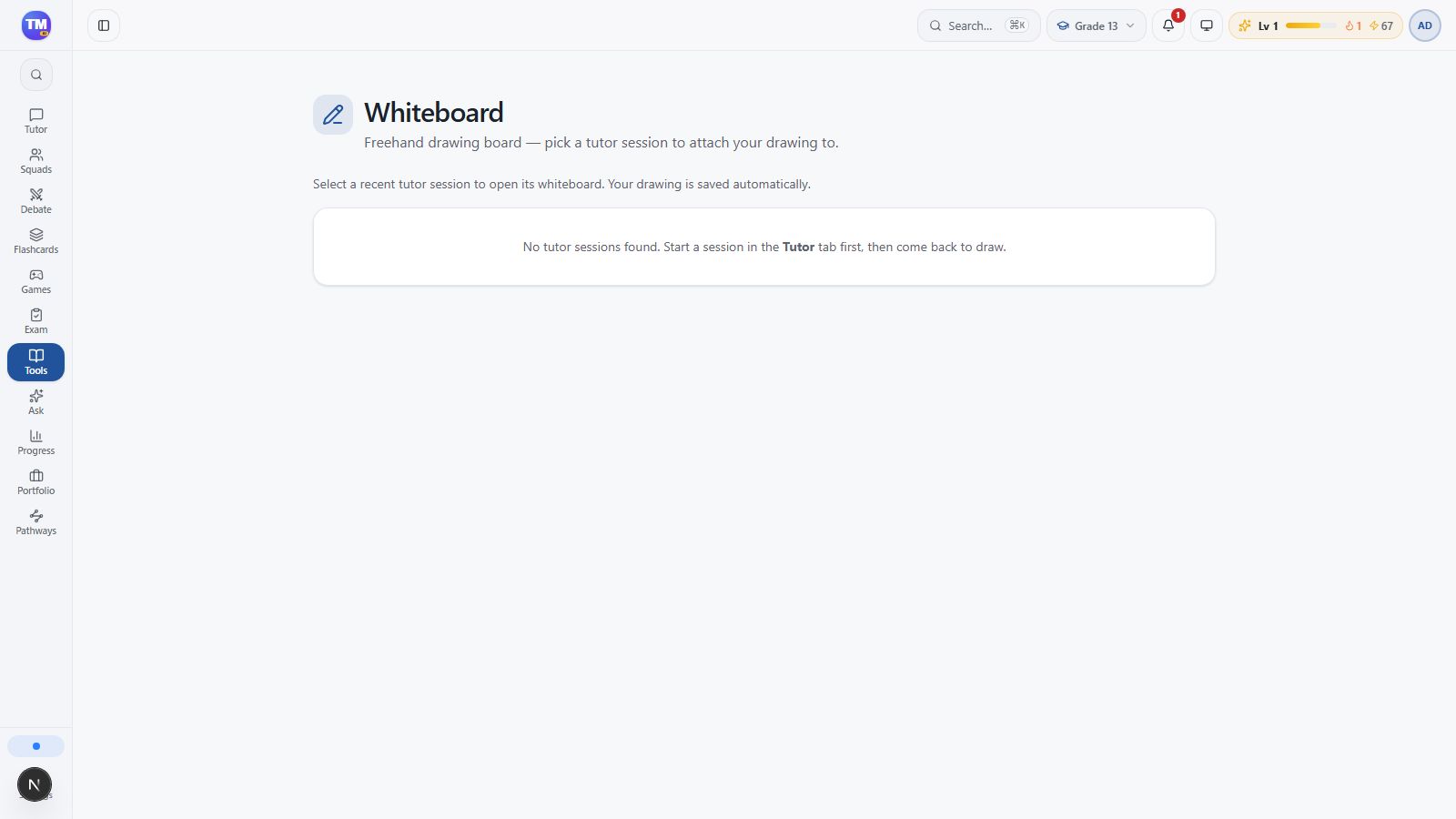
If the list is still empty after you have started a session, reload once and report the problem. During this local documentation recording, that list remained empty despite existing sessions, so a complete drawing video is not available yet.
Draw an explanation
Section titled “Draw an explanation”Once a session opens, choose Pen and sketch one idea at a time. Use another color to separate parts of a diagram. The toolbar also provides Eraser, Line, Rectangle, Circle, Undo, Redo, and Download PNG.
Keep space for labels and explain what the lines mean. For fractions, draw the same-size whole before comparing pieces. Download a PNG when you need a separate copy.
Check that the drawing is kept
Section titled “Check that the drawing is kept”Drawings are saved automatically. Check the save status, then reopen the same session to confirm your work is present. If a drawing disappears, confirm that you selected the same session and account before trying again.
Next: Attach work to a lesson.